

Excel-Datei zu SEPA umwandeln
Möchten Sie Zahlungsdaten von Excel in SEPA umwandeln? Mit dem Excel-Import von SEPA-Transfer können Sie Zahlungsdaten aus einer Excel-Datei importieren und in eine SEPA-XML-Datei umwandeln.
Show transcription
[On Screen: Intro: the SEPA-Transfer logo with the tagline “Transfer payment data: Excel to SEPA XML converter”.]
With SEPA-Transfer, you can easily convert payment data available in an Excel file into the SEPA XML format.
[On Screen: An Excel sheet named “Payment Data” with the columns Recipient, First name, Amount, IBAN, and Purpose.]
To do this, first prepare your payment data by naming the columns appropriately to make the import into SEPA-Transfer easier.
[On Screen: SEPA-Transfer Enterprise Edition with the Import/Export ribbon; the SEPA-Transfer Import Wizard opens with steps for file type, file path, transaction type, number of transactions, columns, error handling and start import.]
Next, open SEPA-Transfer. Select Import/Export. Click on Import File and select the desired Excel file. Select the booking type and the SEPA-Transfer account to be used. In the preview, you already get a first look at the payment data you are about to import into the program.
[On Screen: In the “Select columns” step, the Excel columns are mapped to SEPA fields such as Recipient, IBAN, BIC, Purpose, Amount, End-to-end ID, Execution date and SEPA Purpose Code, with a live data preview.]
Once you have named the columns appropriately, SEPA-Transfer takes care of the column assignment. Additional fields or errors can be easily adjusted via drop-down. Finally, click on “Execute Import” and all your payment data is stored in SEPA-Transfer.
[On Screen: The message “Import completed successfully” offers the options Send transactions, Export to SEPA XML file, and Edit transactions; the current bookings are shown in a list with an edit form (recipient, IBAN, BIC, amount, purpose, execution date).]
Check the individual entries in the current bookings for correctness. Then you can start exporting the payment data into the SEPA XML format.
[On Screen: The “Export to SEPA XML” dialog lists the transactions and offers options such as transaction type (bank transfer or direct debit), the output path and consolidation settings; a folder picker selects the output directory.]
Select Import/Export again and here “Create SEPA XML file”. Here you can select the open bookings you want to convert to SEPA, either all together or individually. Select the desired output directory and click OK. The conversion is already completed. You can now continue working with your payment data in SEPA XML format.
[On Screen: A “File export” dialog confirms that the transactions were exported successfully and offers to open the file, open the folder, or return to SEPA-Transfer; a wizard step handles invalid transactions.]
One more tip: right after the import, you can also export your payment data to the SEPA XML format with just one click. That way you save even more time with SEPA-Transfer.
[On Screen: Closing screen: “SEPA-Transfer — SEPA Payments With Just One Click”, with a “30 Days Free Trial” button.]
Neben Excel werden noch weitere Dateiformate wie zum Beispiel SEPA-XML oder auch CSV für den Import und Export unterstützt.
Sie können die SEPA-Zahlung aber auch direkt in SEPA-Transfer weiterverarbeiten und anschließend mit einem Klick an Ihre Bank verschicken.
Tipp: Mit der SEPA-Transfer Enterprise Edition können Sie mittels Kommandozeile alle Prozesse teilweise oder vollständig automatisieren! SEPA-Transfer überführt dabei Zahlungsdaten von einer Excel-Datei oder einer Datenbank automatisch.
Daten für Sammellastschrift oder Sammelüberweisung importieren
Möchten Sie gleich mehrere SEPA-Zahlungen aus einer Excel-Datei als Sammler an die Bank weiterleiten, zum Beispiel an Ihre Sparkasse? Sie können mit SEPA-Transfer die Excel-Datei für Sammelüberweisungen oder Sammellastschriften importieren und von dort aus ganz einfach weiter verarbeiten. Beispielsweise können Sie die Zahlungsdaten anschließend aus SEPA-Transfer heraus FinTS-konform an Ihre Bank weiterleiten.
Nach Abschluss der Transaktion können Sie mit der SEPA-Transfer Enterprise Edition auf Wunsch auch automatisch eine Excel-Protokolldatei erstellen, in der alle relevanten Informationen gespeichert werden.
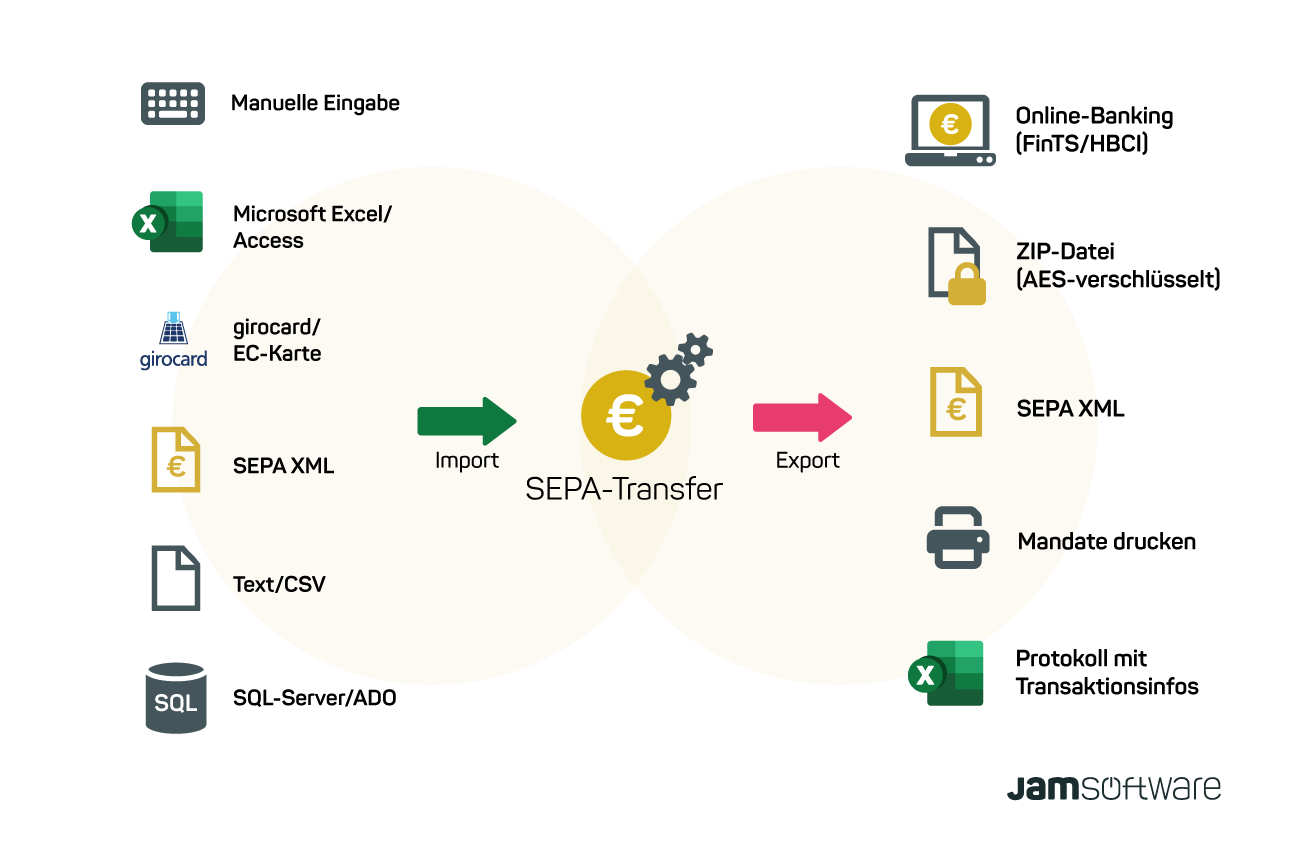
SEPA-Transfer als Zusatztool für Ihr Banking
Wenn Sie mit Banking-Software arbeiten treffen Sie früher oder später auf Programme, die in ihrem Funktionsumfang sehr mächtig sind, wichtige Komfort-Features fehlen jedoch. Beispielsweise der Datenimport aus Dateien, die nicht das SEPA-XML-Format haben, etwa eine Excel-Datei.
Mit SEPA-Transfer bieten wir einen effizienten SEPA-XML Converter: Nutzen Sie SEPA-Transfer als Zusatztool, um Zahlungsdaten blitzschnell von einer Excel- oder CSV-Datei in SEPA-XML umzuwandeln.
Einfacher Abrechnungsprozess für die Kantine
Zahlungsprozesse können viel Zeit rauben. Vor allem, wenn es sich um wiederkehrende Zahlungen handelt.
Mit SEPA-Transfer können Sie genau diese Zahlungsprozesse automatisieren. Lesen Sie unsere Case Study, in der wir erklären, wie wir mit der SEPA-Transfer Import-Funktion und Mandatsverwaltung einen einfachen Bezahlprozess für unsere Kantine etabliert haben.
Mit den Kommandozeilen-Parametern Zeit sparen
IT-Administratoren können die SEPA-Transfer Kommandozeilen-Parameter in ihre bestehenden Skripte einbauen, um Prozesse noch weiter zu automatisieren. Damit wird zum Beispiel ein schnelles Importieren und ein Bank-Transfer von Zahlungsdaten ermöglicht, ohne SEPA-Transfer jedes Mal separat starten zu müssen.
SEPA-Transfer als SEPA Converter selbst testen
Probieren Sie unsere 30-tätige kostenlose Testversion von SEPA-Transfer aus und überzeugen Sie sich selbst innerhalb Ihrer eigenen Geschäftsumgebung!

SEPA-Transfer Small Business Edition